
Home > QuietWarmth > QuietWarmth THERMAEGH-ET72 Thermaegh Wifi Programmable Touchscreen Thermostat User Manual
QuietWarmth THERMAEGH-ET72 Thermaegh Wifi Programmable Touchscreen Thermostat User Manual


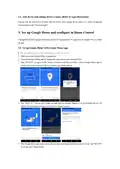


2.3 Add device and change device's name (Refer to App Instruction)
Sign in with the Smart Life account, add the device, then change device name to a easily recognized
word or phrase, like "bedroom light".
3. Set up Google Home and configure in Home Control
Configuration needs Google Home app. Search "Google Home" in App Store or Google Play to install
the app.
3.1 Set up Google Home with Google Home app
You can skip this part if your Google Home is already set up.
1. Make sure your Google Home is energized.
2. Open the Google Home app by tapping the app icon on your mobile device.
3. Tap "ACCEPT" to agree to the Terms of Service and Privacy Policy. Allow Google Home app to
access the device location to discover and set up nearby devices.
4. Tap "SIGN IN", choose one Google account that you already logged in on your mobile device. Or
follow the instructions to sign in with a new Google account.
5. The Google Home app scans nearby devices that are energized and are ready to set up. Tap "SET UP"
to set up your Google Home.

| General | Details |
|---|---|
| Name | QuietWarmth THERMAEGH-ET72 Thermaegh Wifi Programmable Touchscreen Thermostat User Manual |
| Make | QuietWarmth |
| Language | English |
| Filetype | PDF (Download) |
| File size | 0.51 MB |
 (1 votes, average: 5.00 out of 5)
 Loading...

QUIETWarmth Type UCG Thermostat User Manual


Honeywell VisionPRO TH8000 Series Touch Screen Programmable Thermostat User Guide

Honeywell TH2320WF4011 FocusPRO Smart S200 Series Thermostat User Guide

Stiebel Eltron RTA-3000 S2 Thermostat Installation Guide

EPH CONTROLS 20221108 RF Cylinder Thermostat Instruction Manual

HWGL2 Hotwire Thermostat Instructions

MONARCH I 1031 Homematic IP Wall Thermostat Instruction Manual

GLOBAL WIFI Digital Heating Thermostat User Manual
Honeywell Home RTH Series T5 Smart Thermostat Installation Guide

4512673 Heatit ZM Thermostat 16A User Guide

BUDDERFLY BTS-U2 Thermostat User Manual