
ESPUK ECSPST Fort Programmable Thermostat User Manual


ECSPST
Full Manual
Fort Programmable Thermostat with RF and WiFi White
The latest product manuals and software is available online:
REV: J22


| General | Details |
|---|---|
| Name | ESPUK ECSPST Fort Programmable Thermostat User Manual |
| Make | ESPUK |
| Language | English |
| Filetype | PDF (Download) |
| File size | 1.54 MB |
 (1 votes, average: 5.00 out of 5)
 Loading...

ESPUK ECSPST Fort Programmable Thermostat User Manual Overview
Summary of Contents
- Page 1: Full manual Fort programmable thermostat with RF and WiFi white The latest product manuals and software is available online.
- Page 2: Features Product Overview Thermostat Functions Thermostat Configuration Thermostat Installation Installation Plan A Installation Plan B Pairing the thermostat and receiver Preparation for use Voice commands
- Page 3: Features include a large LED display and touch button. The device has permanent user settings and program settings during power loss. It offers a one button Holiday mode and programming periods for 7-day individual or 5/2 split schedules. There are 6 separate time/temperature periods per day and a key lock facility. Low battery indication and frost protection are also included. An optional intelligent function, Optimal Start, is available along with an open window function. The device is integrated with the Clicksmart+ App.
- Page 4: Product overview Wireless icon indicates connection status. Frost protection icon. Call for heat icon. Programming mode icon. Low battery alert. Room temperature or setting temperature display. Default programming schedule can be configured within the ClickSmart+ app. Period 1 to Period 6 settings for different times of the day. Morning ON and OFF times. Afternoon and evening ON and OFF times.
- Page 5: Thermostat functions include switching between ON and standby modes, with standby mode displaying a specific icon and only activating frost protection. The key lock function allows users to lock or unlock the keys, indicated by a display message. Frost protection activates when the room temperature falls below 5°C, sending a call for heat until the temperature rises above 8°C. Open window/door detection activates if the temperature drops 1.5°C in 3 minutes, turning down heating until conditions normalize. A low power alert notifies users when the thermostat is critically low on power. Optimal start enables the thermostat to begin heating slightly before the scheduled time to reach the desired temperature. Fault detection alerts users to internal sensor damage with a specific display message. Operating modes include schedule mode, which follows a set schedule, and boost mode, which sends a call for heat until the next scheduled program. Manual mode allows users to set a desired temperature until manually ended. Users can toggle between schedule mode and manual mode, with the display indicating the current mode.
- Page 6: Thermostat configuration involves several steps to access and adjust settings. To enter the configuration menu, long press the designated button in standby mode. You can adjust settings by using the appropriate buttons to navigate through the options. Pressing the save button will save the current settings and exit to the configuration menu. To restore factory settings, press and hold both specified buttons in the configuration menu. Restoring factory settings will remove any custom configurations and programming settings. Temperature calibration allows for adjustments within a specified range. The thermostat has intelligent functions such as optimal start and frost protection. The number of programming periods per day can be set for different ON and OFF cycles. The LED display option can be toggled on or off for visibility via the app.
- Page 7: Thermostat installation Battery installation Take off cover Install AA batteries Complete installation Ensure the batteries are correctly installed, and the polarities are correctly aligned. Desk mounted Hang thermostat on stand Wall mounted Put the back board on the installation box
- Page 8: Installation Plan A outlines the necessary steps for proper installation and servicing of the products. Products should be installed by competent persons in accordance with relevant wiring regulations. Ensure that the electrical supply is switched off at the breaker before any installation or maintenance. The receiver must be installed near the boiler and within the wireless network signal area. The thermostat can be installed anywhere within range of the receiver, with a maximum distance of 100m in open field conditions. Installation steps include mounting the receiver on the wall and clipping it onto the backplate. Wiring instructions detail connections for power supply cables and control cables. Boiler type selection is important, with specific configurations for normally open (N/O) and normally closed (N/C) outputs. The document specifies the use of black, grey, brown, and blue cables for different connections. Proper installation ensures compliance with recommended codes of practice.
- Page 9: Installation Plan B Our products are designed to comply with the recommended codes of practice and to be installed and serviced by competent persons in accordance with the relevant wiring regulations. Warning: Before any installation or maintenance, ensure that the electrical supply is switched off at the breaker. When installing the thermostat directly to the boiler, ensure the receiver is within the WiFi coverage area. Note: Distance between thermostat and receiver cannot be greater than 100m (open field). When the thermostat is connected directly to the boiler, item 8 of the configuration should be “ON”. As default it is set to OFF. Install receiver as gateway with plug adapter. Caution: Black & Grey Control 230V Relay potential of 230V. Risk of electric shock. Reinstall safety cover.
- Page 10: Pairing the thermostat and receiver is typically pre-paired by default. The LED will stay illuminated yellow. To turn off the receiver, press the designated button. When in the OFF condition, press and hold the button for at least 3 seconds to illuminate the LED yellow constantly. In standby mode on the thermostat, press and hold the button for 3 seconds. If pairing is successful, the thermostat will display a confirmation message and the icon will constantly display. The thermostat will automatically return to the OFF interface after successful pairing. Press the designated button to enter pairing mode. In pairing mode, the thermostat will display a specific message and the icon will be flashing. These steps guide the user through the pairing process of the thermostat and receiver.
- Page 11: Product description The WiFi Smart Thermostat (ECSPST) forms part of the ESP Fort range of smart products and can also be used in conjunction with Scolmores ClickSmart+ range of products. Users are able to control the Smart Thermostat using the ClickSmart+ app, manually and using voice controls. The ECSPST can be used to program your heating schedule and the desired heating temperature. Preparation for use To use the ECSPST you will need to download the ClickSmart+ app. Ensure that you have a mobile device running iOS 8 or higher, or Android 4.1x or higher, and a sufficient WiFi network connection. It is important to know your Wi-Fi network and Wi-Fi network’s password before pairing the Thermostat to the ClickSmart+ app. Installation instructions On the ClickSmart+ app’s home page, click on the “+” symbol in the top right of the home screen. Then click on “ESP” on the left hand side. And finally click on “Smart WiFi Thermostat with RF.” The app will then display on screen instructions for pairing the ECSPST onto the Wi-Fi network.
- Page 12: How to integrate the ECSPST into Alexa Once the ECSPST has been configured with the ClickSmart+ App, you can then control the thermostat using voice commands. Open the Alexa app, and press “More” on the bottom task bar. Press “Skills & Games”. Search for “Click Smart +”, and click on “Click Smart +”. Press “ENABLE TO USE”. The Alexa app will then take you through the Account Binding Process, you must use the ClickSmart+ Account you used to pair your ECSPST. Alexa will start searching for Alexa Voice compatible Click Smart + products.
- Page 13: How to integrate the ECSPST into Google Home Once the ECSPST has been configured with the ClickSmart+ App, you can then control the thermostat using voice commands. Open the Google Home app and press “settings”. Press “Add Device”. Press “Works with Google”. Search for “Click Smart +” and click onto “Click Smart +”. The Google Home app will then take you through the Account Binding Process. You must use the ClickSmart+ Account you used to pair your ECSPST. Google Home will now contain all compatible Click Smart + products.
- Page 14: Voice commands for Alexa and Google Home/Assistant are provided. For Amazon Alexa, commands include turning devices on and off, checking temperature, and adjusting settings. For Google Home/Assistant, similar commands are available for controlling devices.
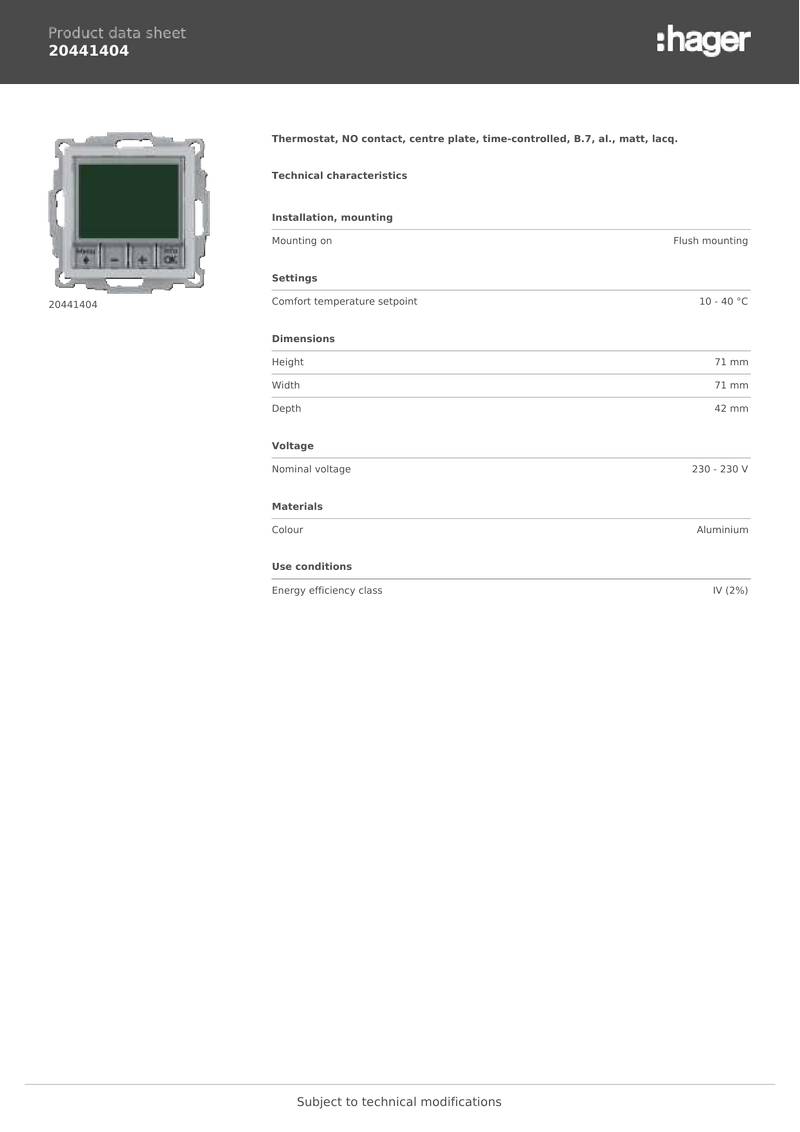
hager 20441404 Thermostat Owner’s Manual

Danfoss 088N3688 Room Thermostat Installation Guide

JABLOTRON TP-98TX Wireless Thermostat Instruction Manual

Klima SF300 Digital Thermostat Instruction Manual

bandary FC660 Smart Thermostat User Guide

AIRQUEST TSTATIIEWF ION Gray Smart Thermostat Owner’s Manual

GENERAL Life HT220S Digital Room Thermostat User Manual

EMERSON ST75W Sensi Touch Wi-Fi Smart Thermostat Installation Guide

Honeywell Smart Color Touchscreen Programmable Thermostat RTH9590 User Manual

Danfoss 088U0210 CF-RS Standard Room Thermostat Instruction Manual