
ESi ESRTP4RFW RF Programmable Room Thermostat User Manual


ESRTP4RFW
RF Programmable Room
Thermostat
User Instructions


| General | Details |
|---|---|
| Name | ESi ESRTP4RFW RF Programmable Room Thermostat User Manual |
| Make | ESi |
| Language | English |
| Filetype | PDF (Download) |
| File size | 0.23 MB |
 (1 votes, average: 5.00 out of 5)
 Loading...

ESi ESRTP4RFW Programmable Room Thermostat Installation Guide

ESi ESRTP4 TOUCH Programmable Room Thermostat Instruction Manual

ESI ESRTP6B WiFi Wireless Programmable Room Thermostat Instruction Manual

ESi ESRTP6C, ESRTP6CW Centro Prog Room Thermostat User Guide

ESi ESRTP4RFW RF Programmable Room Thermostat User Manual Overview
Summary of Contents
- Page 1: RF programmable room thermostat user instructions
- Page 2: Thank you for choosing ESi Controls. All our products are tested in the UK. We are confident this product will reach you in perfect condition. We recommend you register your product online for your extended warranty.
- Page 3: COPY button HOLIDAY button Frost protection icon Flame icon Wi-Fi icon RF icon Low battery icon Programming Program schedules What is a programmable room thermostat?
- Page 4: Quick operating guide Home – Takes you back to your home screen Next – Moves you to the next option within a function Frost protection (thermostat is off) Wi-Fi connection state (when paired with ESWIFIHUB) RF connection state Plus – Temporary override/adjust settings Minus - Temporary override/adjust settings All day – Set all day mode Holiday – Set holiday mode Mode – Choose between auto mode, manual mode or off
- Page 5: What is a programmable room thermostat? A programmable room thermostat is a thermostat and a timer combined into one unit. Introduction to the ESRTP4RFW The ESRTP4RFW offers options for 24Hour, 7Day, or 5-2Day programming and either 4 or 6 daily temperature changes. It is designed for automatic time and temperature control of heating systems in domestic or light commercial premises. A large backlit LCD screen and easy-to-use function buttons ensure simple programming and operation. Programming requirements You must program this unit for ON programs and also for OFF programs, known as a SETBACK temperature. The SETBACK temperature prevents the household temperature from falling below a pre-set level while heating is off. The recommended SETBACK temperature is 15°C, but it can be adjusted. Energy-saving features Your ESRTP4RFW includes special features designed to save energy, which are factory set to be OFF. Chronoproportional control (TPI) makes boilers operate more efficiently and provides accurate control.
- Page 6: Compensator ensures the boiler ON time is reduced to a minimum and matches the boiler heat output with the heat loss. This reduces the net temperature of the return water to the boiler. TPI (Time Proportional and Integral) advanced energy saving feature increases boiler efficiency by firing the boiler at regular intervals, up to 10% in both fuel cost and carbon emissions. Thermostats with Delayed Start software have been shown to reduce heating costs by as much as 10%. This feature delays the start-up of the heating, depending on how warm the room temperature is at the time when the heating is due on. TPI room thermostats can be used on any boiler, with underfloor and radiator systems, zoned heating and electric heating systems. The use of an electronic thermostat with chronoproportional capability provides closer temperature control plus possible reductions of heating costs. The heating start can be delayed by up to 45 minutes if the room is already relatively warm, often reducing how long the heating is on per day, with no comfort loss. The Delayed Start feature can be fully automatic and needs no extra programming. Optimum Start adjusts the start time for your heating according to the temperature measured within the building.
- Page 7: Setting an arbitrary time for heating allows homeowners to program when the home should reach the desired temperature. Most homeowners prefer to start heating a couple of hours before waking up to avoid a cold house. Optimum Start automatically adjusts the heating start time to ensure the home reaches the set temperature by the programmed time. To re-pair your room thermostat with the RF receiver, power up the RF receiver and hold the heating button until the manual override light begins to flash. Press the mode button until the thermostat is set to off. Hold the all day, holiday, and + buttons until the display shows saving and the green light on the RF receiver stops flashing. Optimum Stop saves energy by switching the boiler off earlier than the programmed off time without noticeable temperature changes. To reset your thermostat, insert a pin-like object into the reset hole. If the RF receiver and thermostat are supplied as a kit, they are already paired.
- Page 8: Set the time and date by tapping the TIME/DATE button. Your ESRTP4RFW has three modes that can be selected by tapping the MODE button. In AUTO mode, programs will run automatically, and you can temporarily adjust the current set temperature. The display alternates between the current time and a countdown indicating when the next program starts. You can cancel the override at any time by pressing the HOME button. Adjust the hour, minutes, date, month, and year by tapping the ►► button and using the +/- buttons. Select between 12 Hour Clock or 24 Hour Clock using the +/- buttons. In MANUAL mode, you can adjust the set temperature to a comfortable level.
- Page 9: Maintain your heating at this level until you change the SET temperature or switch to a different mode. No programs will run when in manual mode. Use the next button to advance to the next option in menus, programming, and settings. If you don’t want your heating on, set it to OFF by tapping the mode button until a snowflake icon appears. The snowflake icon indicates frost protection is in operation, preventing room temperature from dropping below 5°C. The + and - buttons are used to adjust temperatures and other settings. The All Day function allows you to set an adjustable room temperature until midnight instead of using programs. Pressing the home button will return you to your home screen, exiting any menus or functions. Tap the All Day button to activate the All Day function. Use the + and - buttons to select a SET temperature and adjust it throughout the day. At midnight, All Day mode will be cancelled.
- Page 10: You can cancel all day mode at any time by pressing the home button. Tap the button and use the +/- buttons to set a base temperature for while you are away. When Holiday Mode is active, a suitcase icon will appear on the display. The COPY button allows the end user to copy an entire day’s programs onto another day. Holiday Mode can be set only when your ESRTP4RFW is set to AUTO or MANUAL. To set Holiday Mode, tap the HOLIDAY button. The Frost Protection icon will show if you choose OFF mode. In OFF mode, if the room temperature gets as low as 5⁰C, your ESRTP4RFW will bring your heating on. You can cancel Holiday Mode at any time by pressing the HOME button. Use the +/- buttons to enter the number of days you will be away (maximum 99 days).
- Page 11: RF handshake occurs every 50 seconds. The flame icon indicates when heating is on. A red light on the RF receiver will also be visible when heating is active. The low battery icon appears when AA batteries are low on power. Replace low batteries with high-quality alkaline cells. Time, date, and program settings are retained unless the backup battery expires. The Wi-Fi icon flashes when not connected to an ESWIFIHUB. The RF icon shows a solid antenna when the thermostat and RF receiver are paired. If the RF icon has a circle and a line crossed through it, it indicates a communication issue. The thermostat backlight will stop working when the low battery icon appears.
- Page 12: Set program schedule options include 5-2Day, 7Day, and 24Hour. The thermostat is designed for simple use with minimal user intervention. It features a pre-programmed heating profile suitable for most users. To accept the factory pre-set profile, tap the MODE button until AUTO is displayed. 5-2Day allows for one set of programs for weekdays and a different set for weekends. 24Hour runs the same programs every day. 7Day allows for a different program each day, requiring separate programming for each day. The thermostat defaults to using 4 daily programs, typically consisting of 2 ON programs and 2 reduced temperature settings. Users can choose to program either 4 or 6 daily programs. Programming is initiated by tapping the PROG button and using the +/- buttons to select options.
- Page 13: Setting programs allows the end user to customize their comfort temperature. Users can set a setback temperature for overnight. To add further daily programs, specific steps must be followed. Choose a program schedule as indicated. Press the button to access Program 1, where the time will flash on the display. Ensure the thermostat is OFF before entering technical settings. Use the buttons to set the start time and temperature for each program. The screen will display the current number of programs in use. Select either 4 or 6 programs as needed. Exit the technical settings menu after making adjustments.
- Page 14: Use the +/- buttons to set your P3 start time. Press the button to move on to the temperature for P3. When using 7Day mode, you can copy an entire day's programs onto another day. Use the MODE button to select AUTO. Tap the COPY button to initiate the copying process. Choose the day to copy from by tapping the ALL DAY button. Use the +/- buttons to set your P4 start time. Press the button to move on to the temperature for P4. Remember to set your P4 temperature quite low for the OFF program. Press COPY to confirm and acknowledge the change in programming.
- Page 15: Repeat until all your programming is completed. Pairing ESWIFIHUB with Centro Download the ESi Centro app from the Apple App Store or Google Play store. Create a Centro account using an email address and memorable password. Log into Centro. To upgrade the ESRTP4RFW to smart control, the thermostat can be RF paired with the ESWIFIHUB. Tap on ADD A NEW DEVICE at the bottom of your phone screen and follow the on-screen instructions to pair your Wi-Fi Hub to your home network. Pairing ESRTP4RFW with ESWIFIHUB On your ESWIFIHUB, hold the right (red) button until the left button flashes green. On your ESRTP4RFW, tap the MODE button until your thermostat is OFF (*). Hold the ALL DAY button, the HOLIDAY button and the + button until the green light on your ESWIFIHUB stops flashing.
- Page 16: We are continuously developing our products to bring you the very latest in energy-saving technology and simplicity.

GENERAL LIFE ARUNA HT300S Smart Room Thermostat User Manual

Milesight WT201-868M Smart Thermostat User Guide
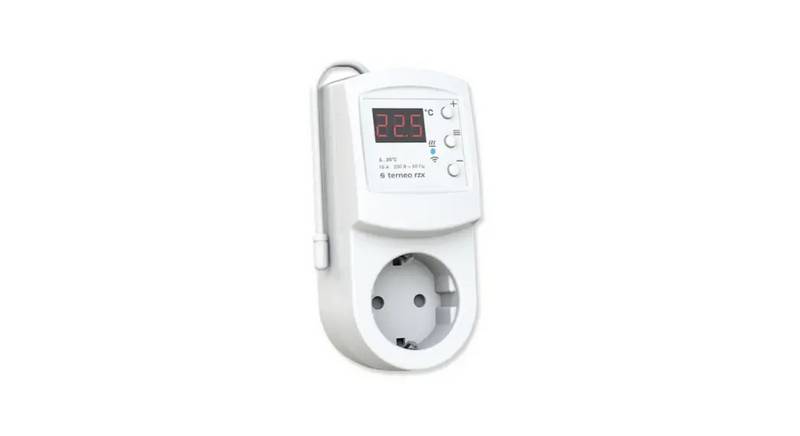
terneo rzx Smart Thermostat User Manual

VIMAR 01910 Electronic Timer Thermostat Instruction Manual

EBECO EB-Therm 500 Floor Heating Thermostat Instruction Manual

iO HVAC CONTROLS Z-2000-T Thermostat Instruction Manual

aube technologies TH110A-DP-P Thermostat User Manual

micro-Air EasyTouch 352 Thermostat User Manual

ENGO CONTROLS E901RF Series Programmable Thermostat User Guide

STEGO STO 011 Compact Thumbwheel Thermostat User Guide