
ring Homeowner’s Pro Smart Thermostat User Manual


Homeowner’s Guide
for Lennar Communities Connected by Ring
Welcome to your installation guide for Lennar homes.
If you need help, call Ring Support at 877-326-3982.
Before you begin...
Use this guide to learn how to set up each product included in the
Lennar Communities Connected by Ring program.
Do you have power and internet access?
Electrical power and broadband internet access are needed to
set up your smart home devices
Download the Ring app.
Before you set up your Ring devices, download the Ring app.
Create an account or use your existing Ring account.
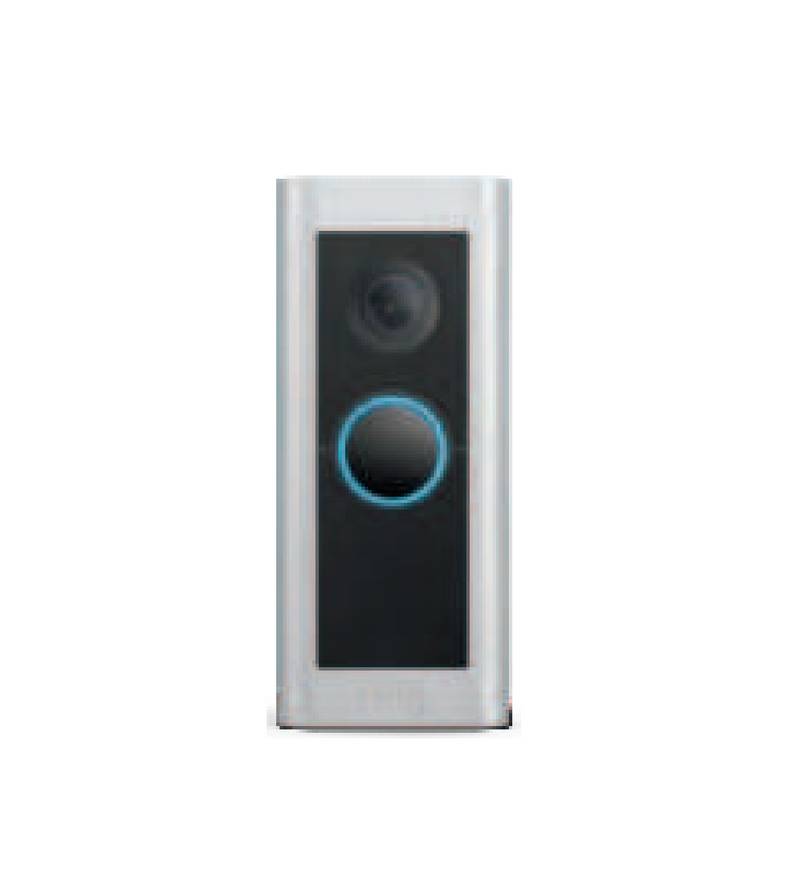
Ring Video Doorbell Pro
To set up your Doorbell Pro, remove the doorbell’s faceplate
using the provided screwdriver. Press the button on the side
of the doorbell and hold for 10 seconds. A spinning white
light on the front of the device indicates the doorbell is now
in Setup Mode.
Next, open the Ring app and select Set Up a Device to get
started with step-by-step installation instructions. For more
installation help, refer to the user guide in the box.
Note: If you have 2 Ring Video Doorbells, set them both up
using the same steps. You can also set them up using the
same Ring account, or using two different Ring accounts,
depending on your preference.
1


| General | Details |
|---|---|
| Name | ring Homeowner’s Pro Smart Thermostat User Manual |
| Make | Ring |
| Language | English |
| Filetype | PDF (Download) |
| File size | 0.06 MB |
 (1 votes, average: 5.00 out of 5)
 Loading...

legrand WZ3TSTATH Thermostat Instruction Manual

WATTS W561 WiFi Thermostat Instruction Manual

Micro-Air EasyTouch 355 Touch Screen Thermostat User Manual

Danfoss ECtemp 132 Electronic Thermostat Installation Guide

ESP ECSPST Fort Programmable Thermostat User Manual

JUNG RTR230 230V Room Thermostat User Manual

Coleman 9420-381 Digital Wall Thermostat Instruction Manual

Moes M30 x 1.5 Smart Radiator Thermostat User Manual

Dettson R02P034 Communicating Thermostat Instruction Manual

Tio 230v Thermostat User Manual