
WATTS TEK564 Invita WiFi Thermostat Instruction Manual


IOM-WattsHome
Installation, Operation and Maintenance
Watts® Home Mobile App
Works with the
Watts® Home Mobile App
!
WARNING
Please read carefully before proceeding with
installation. Your failure to follow any attached
instructions or operating parameters may lead
to the product’s failure.
Keep this Manual for future reference.


| General | Details |
|---|---|
| Name | WATTS TEK564 Invita WiFi Thermostat Instruction Manual |
| Make | WATTS |
| Language | English |
| Filetype | PDF (Download) |
| File size | 0.16 MB |
 (1 votes, average: 5.00 out of 5)
 Loading...

WATTS IOM-T-564 tekmar Invita WiFi Thermostat Instruction Manual

WATTS IOM-T-563 Tekmar WiFi Thermostat Installation Guide

WATTS BT-A03 RF Electronic Room Thermostat Installation Guide

WATTS WTC-ES Contact Thermostat User Manual

WATTS 563 WiFi Thermostat User Manual

WATTS W561 WiFi Thermostat Instruction Manual

WATTS Tekmar Wi-Fi Thermostat Instruction Manual

WATTS TEK564 Invita WiFi Thermostat Instruction Manual Overview
Summary of Contents
- Page 1: Installation, operation and maintenance. Watts Home mobile app. Please read carefully before proceeding with installation. Your failure to follow any attached instructions or operating parameters may lead to the product’s failure. Keep this manual for future reference.
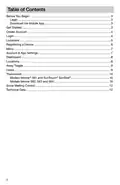
- Page 2: Before you begin Legal Download the mobile app Get started Create account Login Locations Registering a device Menu Account & app settings
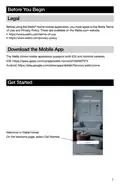
- Page 3: Before using the Watts Home mobile application, you must agree to the Watts Terms of Use and Privacy Policy. The Watts Home mobile application supports both iOS and Android versions. On the welcome page, select Get Started.
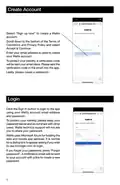
- Page 4: Create account by selecting “Sign up now” and accepting the terms of conditions and privacy policy. Enter your email address to create your Watts account. A verification code will be sent to your email inbox for identity protection. Create a password after entering the verification code. Login by clicking the Sign In button with your email address and password. Keep your password secret and do not share it with others. Watts technical support will not ask for your password. Watts uses Microsoft Azure for hosting web and mobile app services. A dialog box may appear asking if you wish to use b2clogin.com to login. If you forget your password, press “Forgot password” to receive a notification email with a link to create a new password.
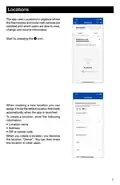
- Page 5: The app uses locations to organize where the thermostats and snow melt controls are installed. Users can view, change, and receive information based on these locations. Start by pressing the C icon to create a new location. You can assign a location to be the default that loads automatically when the app is launched. To create a location, enter the location name, address, and ZIP or postal code. When you create a location, you become the location owner. You can then share this location with other users.
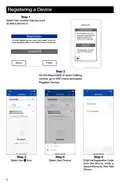
- Page 6: Registering a device involves several steps. Select the location where you want to add a device. To finish registering your thermostat, enter the code displayed in the Watts Home mobile app. The registration code will expire in 30 minutes. On the thermostat or snow melting control, go to the WiFi menu and press Register Device. Select the icon to proceed. Select Add Device. Enter the registration code from the device, enter a device nickname, then add the device.
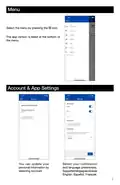
- Page 7: Select the menu by pressing the B icon. The app version is listed at the bottom of the menu. You can update your personal information by selecting Account. Select your notification and language preferences. Supported languages include English, Español, Français.
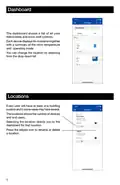
- Page 8: The dashboard shows a list of all your thermostats and snow melt controls. Each device displays its nickname together with a summary of the room temperature and operating mode. You can change the location by selecting from the drop down list. Every user will have at least one building location and in some cases may have several. The locations show the number of devices and users. Selecting the location directs you to the dashboard for that location. Press the ellipsis icon to rename or delete a location.
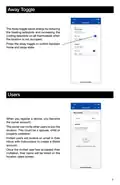
- Page 9: The Away toggle saves energy by reducing the heating setpoints and increasing the cooling setpoints on all thermostats when the location is not occupied. Press the away toggle to switch between home and away state. When you register a device, you become the owner account. The owner can invite other users to join the location. Invited users will receive an email in their inbox with instructions to create a Watts account. Once the invited user has accepted their invitation, their name will be listed on the location users screen.
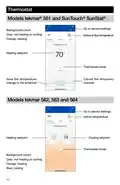
- Page 10: Thermostat models tekmar 561 and SunTouch SunStat. Go to device settings. Indoor temperature. Heating setpoint. Thermostat mode. Background colors indicate system status: gray for not heating or cooling, orange for heating, and blue for cooling. Save the temperature. Change to the schedule. Cancel the temporary override. Models tekmar 562, 563, and 564 also have similar settings.
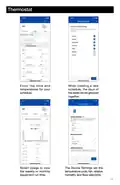
- Page 11: Thermostat Enter the time and temperatures for your schedule. When creating a new schedule, the days of the week can be grouped together. Select Usage to view the weekly or monthly equipment run time. The Device Settings set the temperature units, fan, relative humidity and floor setpoints.
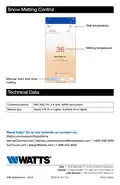
- Page 12: Snow melting control Slab temperature Melting temperature Manual start and stop Technical data Communications Mobile app WiFi 802.11n, 2.4 GHz, WPA2 encryption Apple iOS 12 or higher, Android 10 or higher

HIVE Thermostat for Heating Owner’s Manual

technoswitch TE315 Recessed Touch Thermostat User Guide

Smartica HY607B 3A Zig Bee Thermostat User Manual

Livn 147 Thermostat User Guide

Amana ATST-CWE-BL-A Smart Thermostat Owner’s Manual

STELPRO ASSO Series Integrated Thermostat Installation Guide

WARMZONE UWG5 Wi-Fi LED Touch Thermostat User Guide

Honeywell TH5220D Non-Programmable Digital Thermostat Installation Guide

Honeywell TH1100DV PRO Series Non Programmable Thermostat Instruction Manual
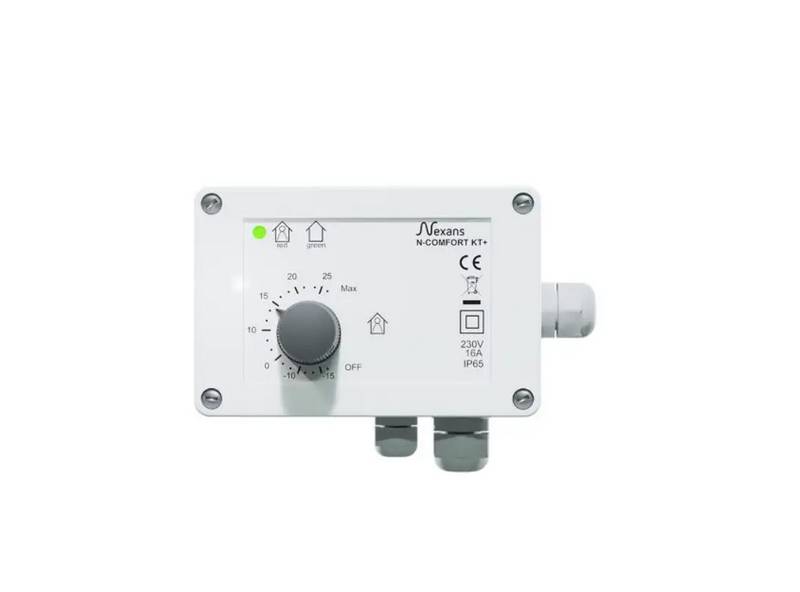
Nexans N-Comfort Kt+ Thermostat Instruction Manual