
TechPunt E1 Smart WiFi Radiator Thermostat User Guide
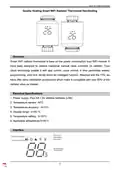


Smart WiFi Radiator Thermostat
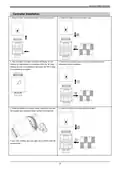
7. When the “in” stops flashing, turn the knob, the TRV will enter
self-check mode, the TRV will display “Ad” and the internal push
rod will adapt to the opening and closing of the valve.
8. After the TRV self-check is completed, the screen will display the room
temperature, indicating that it has been installed and can work normally.
WiFi Connection(FOR WIFI MODELONLY)
Before using your WIFI thermostat for the first time, you must configure the WIFI signal
and setting through your smart phone or tablet. This will allow communication between
your connected devices.
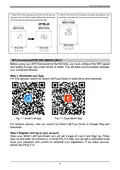
Step 1. Download your App
For IOS devices, search for Smart Life/Tuya Smart in Apple Store and download.
Fig 1-1 Smart Life App
Fig 1-1 Tuya Smart App
For Android devices, also can search for Smart Life/Tuya Smart in Google Play and
download.
Step 2 Register and log in your account
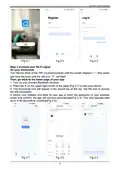
Open your Smart Life/Tuya Smart, you will get a page of Log In and Sign Up. Press
Sign Up and enter your phone no. or email (Fig 2-2) then you can get a verification code.
Input your password and confirm to complete your registration. If you have account,
please log in(Fig 2-3).
4

| General | Details |
|---|---|
| Name | TechPunt E1 Smart WiFi Radiator Thermostat User Guide |
| Make | TECHPUNT |
| Language | English |
| Filetype | PDF (Download) |
| File size | 0.2 MB |
 (1 votes, average: 5.00 out of 5)
 Loading...


GENERAL LIFE SOLARA 300S Digital Room Thermostat User Manual

Honeywell CM721 Programmable Room Thermostat User Guide

technolysis HYT002-WIFI WI-FI Digital Heating Thermostat User Manual

micro-air EasyTouch RV 356 True Air RV Thermostat User Manual

Klima 825201 Intelligent Control Wi-Fi Underfloor Heating Thermostat User Manual

ENGO EASYBATB Wired Battery Thermostat User Guide

Danfoss RT 115 Thermostat Installation Guide

aube technologies TH110A-DP-P Thermostat User Manual

WARMZONE UWG5 Wi-Fi LED Touch Thermostat User Guide
MCOHome MH-5900 Z Wave Thermostat User Guide